Left click
Check Left Mouse and uncheck Right Mouse for a normal repeated primary click. Start with a large interval and confirm the target responds as expected.
The Windows desktop app · Guide updated 30 September 2026
From your first repeated click to keyboard combinations and a completely different interface. Choose the actions, set the timing, and stay in control with F6.
01 / Your first run
Install AutoClicker.AACore from Microsoft Store and launch the Windows app. You can follow this guide in either Classic View or a custom skin.
1000 in Interval (ms) and 0 in Random Delay (ms). These are also the startup defaults.02 / Find your controls
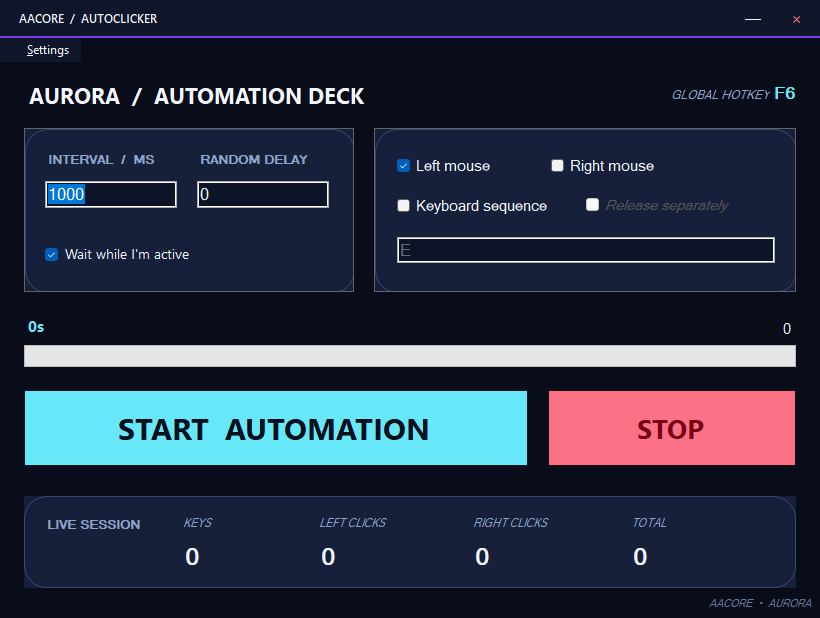
| Classic control | What it does | In a skin |
|---|---|---|
| Left Mouse / Right Mouse | Select which mouse buttons to repeat. Both may be selected. | Left mouse / Right mouse |
| Key/s + text box | Enable keyboard automation and enter one or more accepted key names. | Keyboard sequence, keys, or similar |
| Press Separetely | The Classic label has this spelling. Check it for one key at a time; uncheck it for keys held together. | Release separately or separate-key option |
| Interval (ms) | The base wait after a cycle of selected actions. | Interval, cycle time, or similar |
| Wait while I'm active | Restart the full waiting timer after real key/mouse-button presses or wheel scrolling; keep statistics. | In the timing card, or a compatibility row in older skins |
| Random Delay (ms) | Add a random wait from zero up to the entered maximum each cycle. | Random delay / jitter |
| Start / Stop / F6 | Begin or end repeated actions. Action and timing fields are disabled during a run. | May use larger buttons or different captions |
| Statistics + progress | Count generated key presses/clicks and show a timing indicator. | May appear as cards or a dashboard |
| Settings | Choose a Classic theme, activate/install a skin, or return to Classic. | Still available in the skin header/menu |
| Software Version | Click the version/footer label to open About, including the product website link. | The footer may have a skin-specific caption |
03 / Mouse automation
Each selected button performs a complete press and release at the pointer's current location. The app does not save a target coordinate or move the pointer back to its starting point. If you move the mouse while automation is running, later clicks follow it.
Check Left Mouse and uncheck Right Mouse for a normal repeated primary click. Start with a large interval and confirm the target responds as expected.
Check Right Mouse and uncheck Left Mouse. Repeated right clicks can open or act on context menus, so keep the pointer on a controlled test area.
The app sends a left click, then a right click, in each cycle. It does not hold both buttons simultaneously. A cycle with both buttons contributes two mouse actions to Total.
The cycle order is keyboard actions → left click → right click → wait, skipping anything unchecked. All keyboard keys are released before the mouse actions. For example, LControl+C plus Left Mouse means a keyboard copy shortcut followed by a plain left click; it does not mean Ctrl-click.
The app retains the 2.0.4 fix for coordinate overflow affecting monitors to the left of or above the primary display. Clicking still uses the current pointer on those displays.
04 / Keyboard & combinations
+E or Space. Separate several names with +, for example E+R.Names are case-insensitive and ordinary spaces are removed. E + R and e+r parse the same way. Uppercase E does not by itself request a capital letter: output depends on the target, keyboard layout, Shift and Caps Lock.
All listed keys are pressed down in order, held briefly together, and then released. Use this for key chords and modifier shortcuts.
LControl+C: press left Ctrl, press C, release the keys. Use the real accepted modifier name, not Ctrl.
Shift+E: hold Shift with E. In a typical English text field this produces a capital E, subject to Caps Lock/layout.
Each key is pressed, held briefly, and released before the next key begins. The sequence repeats after the cycle wait.
E+R: press/release E, then press/release R. In a normal text field this is closer to typing er.
LControl+C in this mode releases Ctrl before pressing C, so it is not a copy shortcut.
Unrecognized tokens are skipped. If no token is recognized, the app stops and displays “Wrong key.” If only some are recognized, it can still run with that smaller set: Ctrl+C becomes C alone because Ctrl is not accepted. Check every token against the reference below. Repeating a key twice in a together-mode chord is not a reliable way to type it twice; use separate mode.
F6 is accepted as an input token, but it is also the app's global start/stop hotkey. Avoid automating it because it can interfere with the run.
05 / Complete key reference
Every accepted token in version 2.0.5 is listed here. Capitalization does not matter. Number-row keys use Num1, for example; the literal token 1 is not accepted. Numeric keypad keys use Numpad1.
a b c d e f g h i j k l m n o p q r s t u v w x y znum0 num1 num2 num3 num4 num5 num6 num7 num8 num9numpad0 numpad1 numpad2 numpad3 numpad4 numpad5 numpad6 numpad7 numpad8 numpad9f1 f2 f3 f4 f5 f6 f7 f8 f9 f10 f11 f12shift alt lshift rshift leftshift rightshift lcontrol rcontrol leftcontrol rightcontrol lalt ralt leftalt rightaltThe left/right names are separate tokens; choose one appropriate to your shortcut. Generic Control and Ctrl are not accepted.
backspace tab return escape space pageup next pagedown end home left up right down insert deleteReturn is the Enter key. Next is an alias for Page Down. Print is the legacy Print key token; it is not a standard Print Screen token.
pause select print help numlock scrollEffects of keys such as Select, Help, Pause or Print depend on the receiving application.
| If you meant… | Type this instead |
|---|---|
| Ctrl+C | LControl+C, separate option OFF |
| Enter | Return |
| Esc | Escape |
| Number 1 on the top row | Num1 |
| Keypad 1 | Numpad1 |
| Arrow Right | Right |
Windows keys, media keys, Caps Lock, F13–F24, literal +, punctuation and Print Screen are not exposed as input tokens in this release, even if a key exists on your physical keyboard.
06 / Timing
Interval (ms) is the base wait after the selected actions have completed. 1000 milliseconds is one second; 500 is half a second; 100 is a tenth of a second. The minimum accepted interval is 1 ms. Invalid or lower values normalize to 1; invalid or non-positive random delay normalizes to 0 when you leave the field or start a run.
Random Delay (ms) adds an independently chosen whole-millisecond amount between zero and the entered maximum, inclusive. It adds time; it does not shorten the base interval or randomize the mouse location/key order.
| Interval | Random Delay | Wait after actions |
|---|---|---|
| 1000 | 0 | 1000 ms |
| 1000 | 500 | 1000–1500 ms |
| 500 | 100 | 500–600 ms |
| 100 | 0 | 100 ms |
With Random Delay 0, together mode holds the two keys for about 250 ms, then waits 1000 ms after the actions. Separate mode holds E for about 250 ms and R for about 250 ms, then waits 1000 ms. The resulting cycles are roughly 1250 ms and 1500 ms respectively, before scheduling overhead. At shorter intervals the keyboard hold changes with the cycle timing and the number of keys.
Stop, edit the interval/random-delay field, and restart. Start/F6 applies both values; Tab or clicking another control also validates them immediately. Start again after returning focus and pointer position to your target. Use modest values first; extremely large pasted values or sums near the integer limit are not useful practical settings.
07 / Optional activity mode
Check Wait while I'm active before starting. It is off by default, available in Classic View and every bundled skin, and works with any selected mouse/keyboard actions and constant or randomized timing. Stop the run to change this option.
10000 ms with Random Delay 0.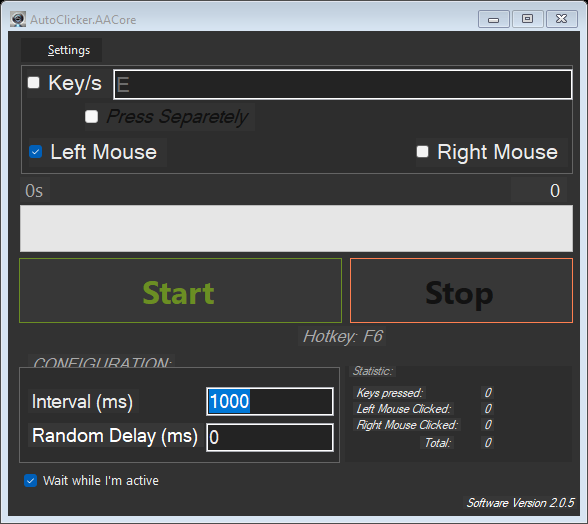
Interval 10000, Random Delay 0: after each real input, wait a new ten seconds. If you press a key nine seconds into the wait, the next automated action must wait another complete ten seconds.
Interval 5000, Random Delay 2000: each cycle samples a wait from 5000–7000 ms. A real input restarts that cycle's current sampled wait; it does not choose a shorter random wait. The next cycle samples again.
Physical key-down events (including modifiers and held-key repeat), mouse-button-down events (including wheel click), and wheel scrolling up/down or horizontally count. Every wheel event restarts the full current waiting interval. The app's generated clicks/keys, injected input from other automation (including synthetic scrolling), mouse movement and button/key releases do not restart the wait. There is no mouse-position, scroll-direction history or text-content tracking.
This is an inactivity delay, not a lock on the target window. An action already sent cannot be undone. Input during a keyboard sequence prevents its remaining key-downs and mouse actions; the app releases keys it already generated. A very short interval can still finish between your real inputs; moving the pointer alone does not count as activity, but wheel scrolling does. Choose a delay long enough for your workflow; use Stop/F6 whenever unintended input would be unsafe.
Activity detection is event-driven on a dedicated lightweight listener thread while an armed run is active. The callback only updates a timestamp; long waiting periods are checked at most once per second, with a fresh activity check before each generated action. No key content, input history or network traffic is stored or sent. Listeners are removed on Stop/Exit. If monitoring cannot start, no actions are sent and the app shows an error.
08 / Worked configurations
These are instructions to enter in the desktop app, not downloadable presets. In every recipe, check only the stated action options, apply the timing fields, focus a suitable test target, start with F6, and stop with F6. Shortcut meanings belong to the receiving application.
One left click, followed by a one-second wait. The pointer stays under your control.
One right click per cycle, then a 1000–1500 ms wait. Inspect how the target handles its context menu.
A left click followed by a right click. This is neither a double-left-click preset nor both buttons held together.
Space / OFFPress and release the space key each cycle. Use a scratch text field for a simple test.
E+R / OFFBoth keys overlap in their down state, then are released before the cycle wait.
E+R / ONE completes before R begins. Test in a scratch document to compare with together mode.
LControl+C / OFFIn a typical text editor, select sample text first. Left Ctrl and C overlap. This can replace clipboard contents; confirm the target supports the shortcut.
LControl+Shift+E / OFFLeft Ctrl, Shift and E overlap. This sends the chord; it has no universal command meaning. Use only with an application that binds it to your intended action.
H+E+L+L+O / ONFive individual key presses, including both L presses. Text output depends on layout/Caps Lock. This is not a text-paste or macro-recording feature.
Num1+Num2+Num3+Return / ONUse a scratch document with no modifier held. Return may submit a form or trigger an action in other targets.
Right+Down / ONOne right-arrow press followed by one down-arrow press each cycle. The target determines what moves.
E / OFFE is pressed and released, then a plain left click occurs at the pointer. The final wait is 1000–1100 ms, in addition to action time.
Start waits ten seconds. A real mouse-button or key press, wheel click, or wheel scroll restarts the complete delay. Scrolling nine seconds into the wait means another full ten seconds. Statistics are kept.
E / OFFWait 5–7 seconds, then E and a left click. Real key/button presses and wheel scrolling reset the current sampled wait; the next cycle samples again. Pointer movement alone does not count.
09 / Feedback
LControl+C contributes two, not one shortcut.For E+R with both mouse buttons enabled, one completed cycle contributes 2 keys + 1 left click + 1 right click = 4 total actions. The counters describe what the clicker generates; they do not confirm that another application accepted every action.
Every new Start resets the counters. Stop keeps the last displayed numbers until the next run. There is no session-history export.
The bar is a visual timing indicator, not a stop-after timer or a completion percentage for a finite job. Very short timings may use an animated marquee. The seconds display represents a configured/current timing value and is rounded; it is not a precision measurement of actual click rate. A run continues until you stop it or close the app. In activity mode, the bar resets after real input and the Idle label shows the remaining inactivity wait.
10 / Make it yours
The original control layout and native Windows title bar, with color-only themes: Dark, Light, AMOLED, Midnight Blue, Forest, Neon.
Choose Settings → Classic Theme → theme name. The selected Classic theme is remembered independently of a custom skin.
A complete visual layout with its own typography, colors, controls and window chrome. Classic Theme is hidden and disabled while a custom skin is active.
Choose Settings → Custom Skins → skin name. The same automation functions and F6 hotkey are available in every skin.
Bundled choices: Aurora Glass, CyberDeck, Forest Sanctuary, Neon District, Obsidian Console, Ocean Current, Orbital Void and Pulse Compact. Stop a run before changing appearance so you can inspect the new layout.
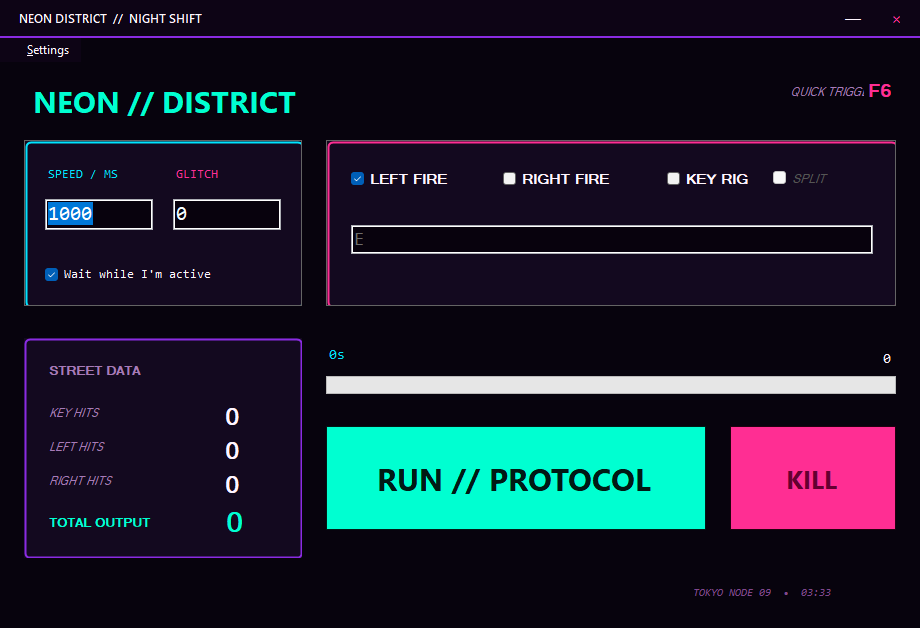
Settings → Reset to default returns to Classic View with the Dark theme. It resets appearance selection; it does not uninstall skin files or reset timing/key fields.
.aaskin file.Packages contain JSON and optional images, not executable plug-in code. Version, structure, paths, sizes and referenced assets are checked. A package requiring a newer app version is rejected.
Settings → Custom Skins → Reload skins refreshes the available packages and reports skipped invalid files. Open skins folder opens %APPDATA%\AACoreClicker\Skins. Installing a package with the same skin ID replaces that user-installed package; user-installed skins take precedence over bundled packages with the same ID.
To remove a user-installed skin, first return to Classic, open the skins folder, remove its .aaskin file, and choose Reload skins. Bundled skins remain part of the app; removing an installed override can reveal the bundled version again. If the selected skin is missing or invalid, the app falls back to Classic View.
Most bundled skins use their own title bar. Drag that header to move the window; use its minimize and close buttons. Minimize leaves a running session active. Closing the main window stops automation. Classic View restores the native Windows title bar.
11 / Troubleshooting
Try the app's Start/Stop buttons. Another app or a second clicker instance may already own F6. Close conflicting instances, restart the clicker and test again. Some keyboards require Fn+F6. F6 is fixed in this version; there is no hotkey editor. Avoid placing F6 in the automated key list.
Check Key/s and enter at least one accepted token. Use Return instead of Enter, Escape instead of Esc, and LControl instead of Ctrl. Join tokens with +. Unknown names are skipped, so a partly valid input can run without warning; compare each name with the key reference.
Uncheck the separate-key option for modifier shortcuts and use an accepted modifier name, for example LControl+C. Bring the intended target to the foreground. Confirm the shortcut is actually supported by that application.
In 2.0.5, Start/F6 applies both edited fields automatically. Check the units, added random wait and whether you are launching an older app. Tab or leaving the field also validates the values. Allow for key-hold time and scheduling overhead when comparing observed speed.
Clicks follow the live pointer. Position it over the target before F6 starts the run; avoid moving it elsewhere while running. There is no saved-coordinate or window-lock feature. With both buttons selected, a right-click menu may change what the next cycle hits.
Counters are generated/attempted actions, not confirmations from the target. Check foreground focus, pointer placement and whether the target accepts synthetic input. Elevated or protected windows and some games can restrict automated input. Test in an ordinary scratch text field or harmless standard window to isolate the target behavior.
Choose at least one action. The app can run an empty cycle if all actions are unchecked. For keyboard-only work, enable Key/s and use a recognized input. For mouse-only work, select a mouse button and check where the pointer is.
Stop the clicker, then physically press and release the affected key/modifier. Test again with a simple key and a slower configuration. Version 2.0.5 releases generated keys during Stop/cancellation/activity interruption. Input already delivered may still have changed the target.
Classic Theme is intentionally unavailable in a custom skin. Use Settings → Return to Classic View to restore it. For a failed package, use Reload skins to see load errors, check its minimum app version, or use Reset to default for Classic/Dark.
Version 2.0.5 retains the 2.0.4 negative-coordinate overflow fix. Check the app's version label/About and confirm you are launching the current installation, rather than an old Debug executable or another copied folder.
12 / Current release boundaries
Appearance is remembered: the active Classic/skin mode, selected Classic theme and custom skin ID are stored locally. Installed skins are also kept in the local user folder. The appearance configuration is %APPDATA%\AACoreClicker\skin_config.json.
Automation fields are session settings: on a fresh launch, the active form starts with Left Mouse selected, Key/s and Right Mouse off, key text E, Interval 1000 ms, Random Delay 0 ms and activity mode unchecked. This release does not restore previous action/timing inputs or offer saved automation presets. Recheck them every time you launch.
The app sends repeated mouse/keyboard actions. It does not provide macro recording, an automatic stop-after count, a scheduled start, saved click positions, drag/hold mouse gestures, per-key scripted delays, a hotkey editor, a session-history export, or a language selector. The website itself does not automate your computer.
For an issue report, include the app version, selected actions, exact key input, separate-mode state, timing values, target application, and monitor arrangement. Contact contactaacore@gmail.com. Read the Privacy Policy for privacy information.